
NFC device compatibility and stability issues explained
NFC devices compatible with Token2 Burner apps
Token2 programmable tokens can be seeded and configured using one of our Burner apps, currently available for Windows, iOS (iPhone only), and Android. The only hard requirement is an NFC chip. Most Android phones and tablets include one, but Windows laptops rarely have a built-in NFC module. So far we have tested and confirmed the Windows Burner app on:
- Dell Latitude 7480
For laptops without a built-in NFC module, use an external USB NFC reader with the Windows version of the app. We have successfully tested the following:
- Token2 NFC Reader/Writer device
- ACS ACR122U — genuine units only (beware of counterfeit products)
- Sony USB NFC Reader RC-S380/S
Python version of the NFC Burner — token2_config.py
We also provide a Python script to program and configure the second-generation NFC-programmable single-profile TOTP hardware tokens, built on the nfcpy library. It runs on Linux, macOS, and Windows, and works with any supported NFC reader.
A note on FIDO2 keys and cards with NFC
Alongside the programmable TOTP tokens described above, Token2 also offers FIDO2 security keys and FIDO2 smart cards that support NFC. It is worth understanding how these differ, because they are used in a completely different way.
- Programmable TOTP tokens are written to with the NFC Burner app: you burn a secret onto them once, and afterwards they display a rotating one-time code on their own screen. The NFC link is only used during programming.
- FIDO2 NFC keys and cards are not programmed with a secret in this way. Instead, they perform public-key authentication: you tap them against a phone or an NFC reader at sign-in time, and the key proves your identity to the service directly. There is nothing to “burn,” and the NFC Burner app is not used with them.
Like the TOTP tokens, FIDO2 NFC keys and cards are passive devices — they have no battery and draw all their power from the reader's field during the tap. The same physical considerations therefore apply: the card's antenna must line up with the reader's NFC area, and a steady tap gives the most reliable result. FIDO2 cards in particular use a full-size antenna spanning the card body, which generally makes them easier to position than the miniature antenna inside a small token.
NFC link stability with Token2 programmable tokens
Some users have reported occasional NFC connectivity issues on certain Android devices, where the link drops mid-way and makes burning a token feel unreliable. A dropped link is in the nature of NFC: it is a very short-range technology, and at the higher bit rates used during a burn, packets can more easily be lost or corrupted.
NFC was chosen to control the programmable tokens because the equipment is inexpensive, widely available, and low-power compared with alternatives such as Bluetooth LE or Wi-Fi. However, the NFC family of protocols was originally designed for contactless payments — a powered terminal and a powerless card exchanging a small amount of data for a fraction of a second. Programming a token is a different kind of exchange: more data, over a longer period. On top of that, the antenna inside our tokens is thinner and smaller than the one in a typical NFC tag, because the tokens are deliberately kept as compact as possible.
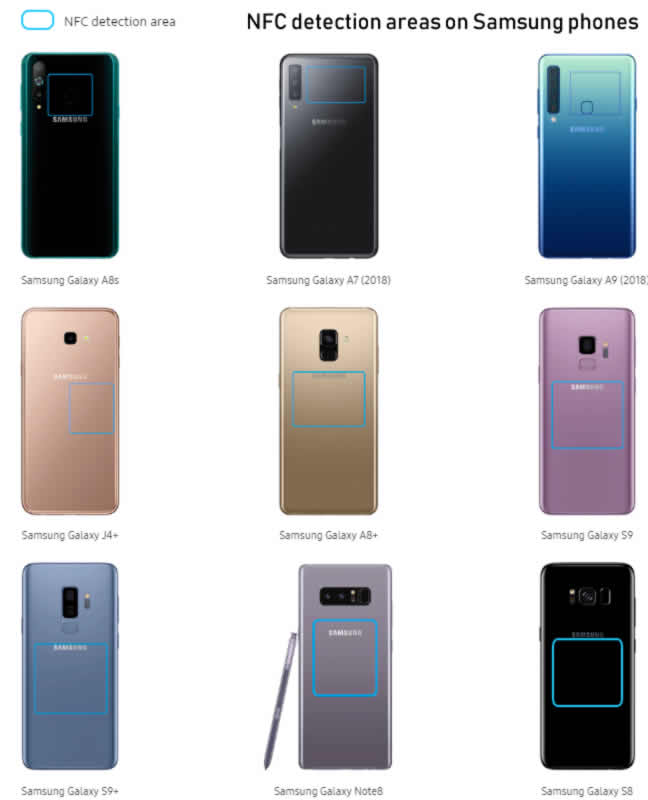
A further complication on Android is that the NFC coil sits in a different place on almost every model — top on one phone, centre on another, bottom on a third — so users sometimes struggle simply to find it.
Tips for a reliable burn
1. Line up the NFC areas precisely. The NFC area of the token must sit directly over the NFC area of the writer — the phone/tablet's coil or the USB module. On phones this location varies significantly by model, so check the manufacturer's documentation. The image shows the NFC detection areas of a few Samsung phones; a full list is available here.
2. Power-cycle and reposition. If a burn fails, turn the token off and on, then lift it away and place it back onto the NFC area.
3. Confirm the link was established. Android devices play a distinct sound when an NFC link is made, and the sound differs for successful versus failed attempts — listen for it. With USB NFC modules, a green LED indicates a successful link. On the ACR122, for example, a successful link flashes the LED green once before it turns off after a couple of seconds, whereas a failed attempt shows red.
Subscribe to our mailing list
Want to keep up-to-date with the latest Token2 news, projects and events? Join our mailing list!